Why is Microsoft IP delisting not working?

Published 29 May 2025
Updated 4 Oct 2026
14 min read
Summarize with

Updated on 4 Oct 2026: We clarified the Microsoft delist routes, the confirmation step, and what to do when the portal says an IP is not blocked.
Microsoft IP delisting can fail for several reasons: the delist portal has a temporary fault, the verification email is delayed or missing, the IP is not eligible for portal removal, Microsoft still sees harmful sending patterns, or the block comes from a different Microsoft filtering layer. If the Microsoft delist portal returns a temporary error before it accepts the IP, or the confirmation link never arrives, the portal workflow has not been completed.
Treat this as two separate problems. First, prove whether the Microsoft form and its verification step are failing. Second, check whether the sending IP and domain have issues that will cause another block. Those are different investigations.
Do not keep repeating the delist form. Collect the SMTP rejection, match its code to the correct Microsoft route, test a fresh message, verify the sender identity, check the IP across public blocklist (blacklist) signals, fix anything still failing, then submit a request with the exact IP and evidence.
The direct answer
If Microsoft IP delisting is not working, locate the point of failure first. A temporary error before submission means the request has not been completed; it does not establish whether the IP is clean or blocked.
If the portal accepts the request and Microsoft still blocks mail, check whether removal has completed, whether the NDR points to a different route, and whether new traffic still triggers filtering. Microsoft can also reject, throttle, quarantine, or junk mail because of authentication, traffic quality, or recipient policy. The official Microsoft delisting guidance describes the specific blocked sender list addressed by the portal.
- Portal fault: The form fails before submission, often with a temporary error that affects more than one sender.
- Wrong route: The NDR requires manual review, an Outlook.com consumer form, tenant action, or another path instead of the Microsoft 365 IP delist portal.
- Reputation remains: The IP has fresh complaints, spamtrap hits, high unknown-user rates, or uneven traffic.
- Identity mismatch: SPF or DKIM fails DMARC alignment, or rDNS and HELO do not identify the sending host consistently.
- Shared damage: Another sender on the same IP or nearby pool keeps creating negative signals after each request.
A delist confirmation is not a guarantee of delivery. It concerns one Microsoft blocked sender list. Inbox placement still depends on other filtering and recipient policy.
- Receipt: The portal took the request and produced an email or page response.
- Removal: The IP was removed from a specific Microsoft blocklist path.
- Delivery: A new message reaches a Microsoft mailbox without rejection or throttling.
- Recovery: Sending behavior remains stable over subsequent mail cycles.
How to separate portal failure from reputation failure
Start by looking at where the failure happens. If the page rejects the request before Microsoft sends a confirmation, investigate the portal step. If the request is accepted but mail keeps bouncing, inspect the fresh NDR before assigning the cause to reputation.
A temporary portal error can affect multiple senders. Save the error and timestamp, retry once from a different browser or network, and compare reports from other senders if available. Repeated submissions of the same IP do not resolve an outage.
Portal problem
- Timing: The error appears before the request is accepted or before the confirmation link arrives.
- Scope: Other senders report the same failure during the same window.
- Action: Save the error, check spam or junk for the verification email, retry later, and avoid changing DNS solely because the page failed.
Sender problem
- Timing: The request is accepted, but Microsoft keeps rejecting or throttling mail.
- Scope: Specific streams, domains, or recipients fail more often than the rest.
- Action: Pause risky traffic, repair authentication, remove bad addresses, and submit again only if the NDR still calls for it.
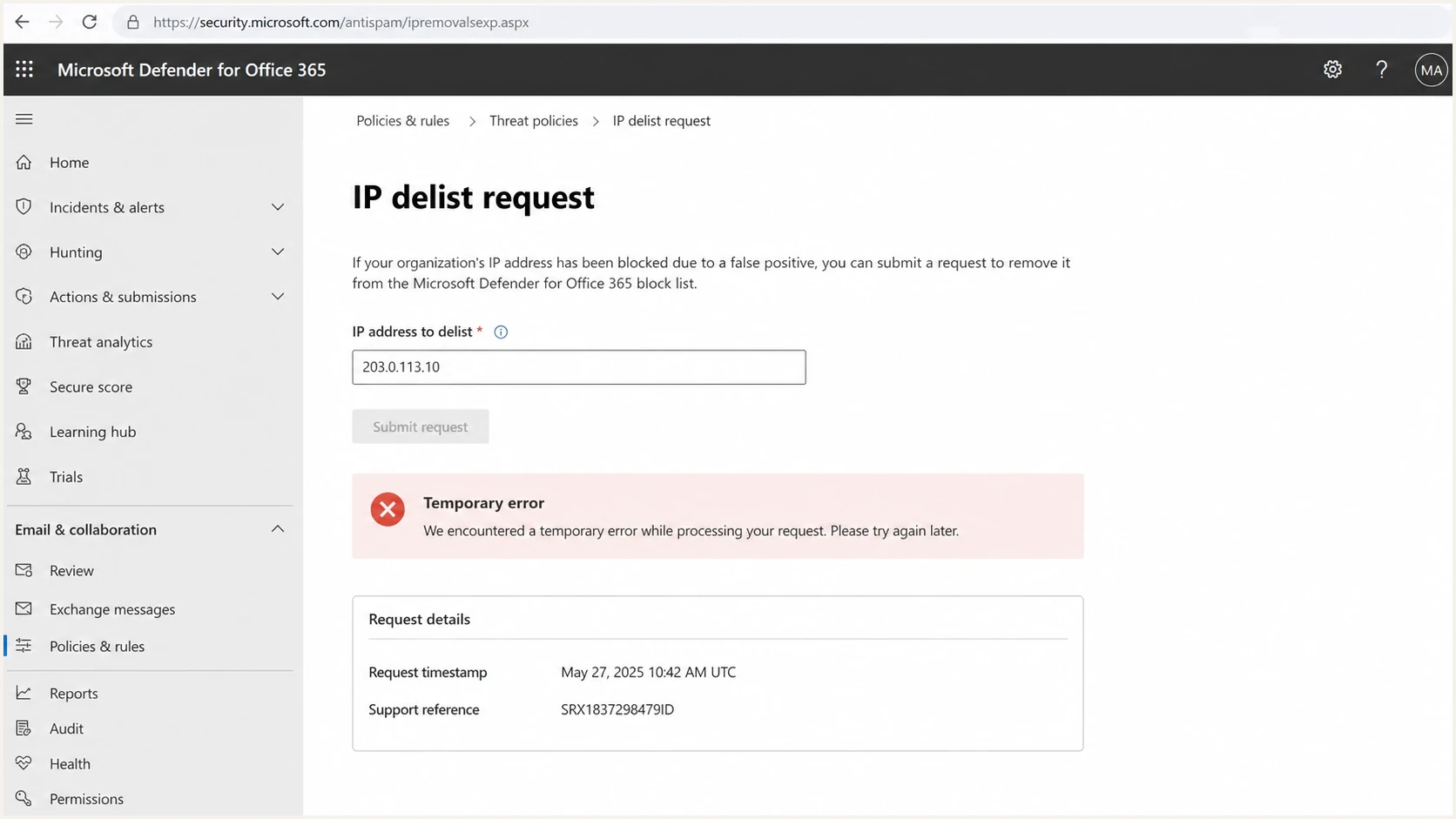
Microsoft Defender for Office 365 delist screen with a temporary error.
|
|
|
|---|---|---|
Temporary error | Portal or session fault | Capture error and retry later |
No verification email | Delivery or mailbox filtering | Check junk and mailbox logs |
5.7.606-649 | Microsoft 365 IP block | Use delist portal |
5.7.511 | Manual investigation | Email full NDR |
Quick triage map for Microsoft delisting failures.
A public thread about a portal outage discussion shows that the form can fail independently of mail quality. Check the sender side before relying on the next submission.
Match the NDR to the correct Microsoft route
Read the complete non-delivery report (NDR) before using any form. Microsoft 365 business delivery and Outlook.com consumer delivery have separate block handling, and error 5.7.511 explicitly bypasses the standard portal. The route named in the NDR takes priority over a generic delisting checklist.
|
|
|
|---|---|---|
550 5.7.606-649 | Microsoft 365 delist portal | Verify email, select Delist IP, then allow up to 24 hours or longer |
550 5.7.511 | Forward the full NDR and IP to delist@microsoft.com | Microsoft says it will contact the sender within 48 hours |
Outlook.com consumer block | Use the separate Outlook.com sender form | Follow the consumer form and the exact NDR instructions |
No IP-block code | Do not assume a Microsoft blocklist | Check tenant policy, content, authentication, and recipient-specific controls |
Current Microsoft routes by rejection code or destination.
For 5.7.606-649, use the email address that received the NDR and the IP address printed in that NDR. The portal accepts one email address and one IP address per visit. Submission is only the first step: open the verification message, follow its link, and select "Delist IP" to complete the request.
If the verification email does not arrive, check the submitted mailbox's spam or junk folder and mail logs. Confirm that the mailbox receives external mail. If the portal instructs you to retry with a different address after an hour, follow that instruction using an address you control. The confirmation step remains required.
After removal, Microsoft says restrictions can take up to 24 hours or longer to clear. Continue testing with fresh messages, but do not treat propagation time as proof that another delist request is needed.
The current Microsoft blocked sender instructions document both the portal process and the separate 5.7.511 route.
When the portal says the IP is not blocked
A "not blocked" portal result only rules out the Microsoft 365 blocked sender list checked by that portal. Keep the full, fresh NDR: an Outlook.com S3150 rejection, a recipient tenant policy, or another filtering decision can still stop delivery.
- Check the destination: For Outlook.com, Hotmail, or MSN consumer addresses, follow the separate Outlook.com sender form named in Microsoft guidance; include the exact S3150 bounce when it applies.
- Check the recipient scope: If one Microsoft 365 organization rejects mail, ask its mail administrator to review the rejection and tenant policy.
- Escalate with evidence: If the correct route stalls after you complete it, send the fresh NDR, IP, timestamps, and corrective actions to the relevant support path. For a Microsoft 365 recipient, its administrator can open a support case.
The Microsoft delisting guidance distinguishes the Microsoft 365 portal from Outlook.com consumer delisting. Do not treat a public blacklist check or a "not blocked" portal response as a verdict on every Microsoft filter.
Technical causes Microsoft still rejects the IP
When the portal works but delivery does not recover, look for signals that Microsoft is still receiving unwanted mail or cannot trust the identity behind the mail. Microsoft filtering is not a single yes-or-no list. IP reputation, domain reputation, message content, recipient interaction, and tenant controls can affect the final result.
Example Microsoft block responsetext
550 5.7.1 Service unavailable, client host [203.0.113.10] blocked
using Microsoft sender reputation data.
Review the sending IP and contact sender support.
The exact bounce code matters. A general IP reputation reject requires different work than S3150 bounces, tenant policy filtering, or content-level blocking. Save the complete SMTP response before changing anything.
- Complaints: Recipients report messages as junk, which signals unwanted mail.
- Bad addresses: High unknown-user rates and stale lists point to poor recipient data.
- Authentication: SPF or DKIM fails, or neither passing identifier aligns with the visible From domain for DMARC.
- Traffic shape: Large bursts and uneven retry patterns can interfere with recovery.
- Shared IPs: Another sender on the same IP or provider pool keeps damaging the listing status.
- DNS identity: Missing reverse DNS or an inconsistent HELO name makes the sending host harder to identify.
Authentication baselinetext
SPF: the sending IP is authorized by the envelope sender domain
DKIM: the message has a valid signature for the signing domain
DMARC: SPF or DKIM passes and its domain aligns with the visible From domain
Readiness before resubmission
Use these operating bands before asking Microsoft to review the same IP again.
Ready
Submit
Authentication passes, bad traffic is paused, and recent bounces are understood.
Unstable
Wait
Some mail is clean, but list quality or traffic spikes still create risk.
Blocked
Stop
Fresh rejects, high failures, or unknown senders still appear in logs.
Unknown
Investigate
The team lacks bounces, headers, authentication results, or source ownership.
Before resubmitting, gather enough proof that the same problem will not reappear right after removal. If the next campaign repeats the same failure pattern, the IP can be blocked again.
- Sources: Every application, vendor, server, and automated job using the IP is known.
- Headers: A fresh message shows passing authentication and clear sending identity.
- Volume: Retry queues are drained and new mail is sent at a controlled rate.
- Recipients: Suppression lists remove complainers, invalid addresses, and dormant contacts.
A practical recovery workflow
Do not start with a new IP unless the current IP is clearly contaminated and the root cause is contained. Moving to a new IP without fixing the sender stream often transfers the same problem to a fresh address.
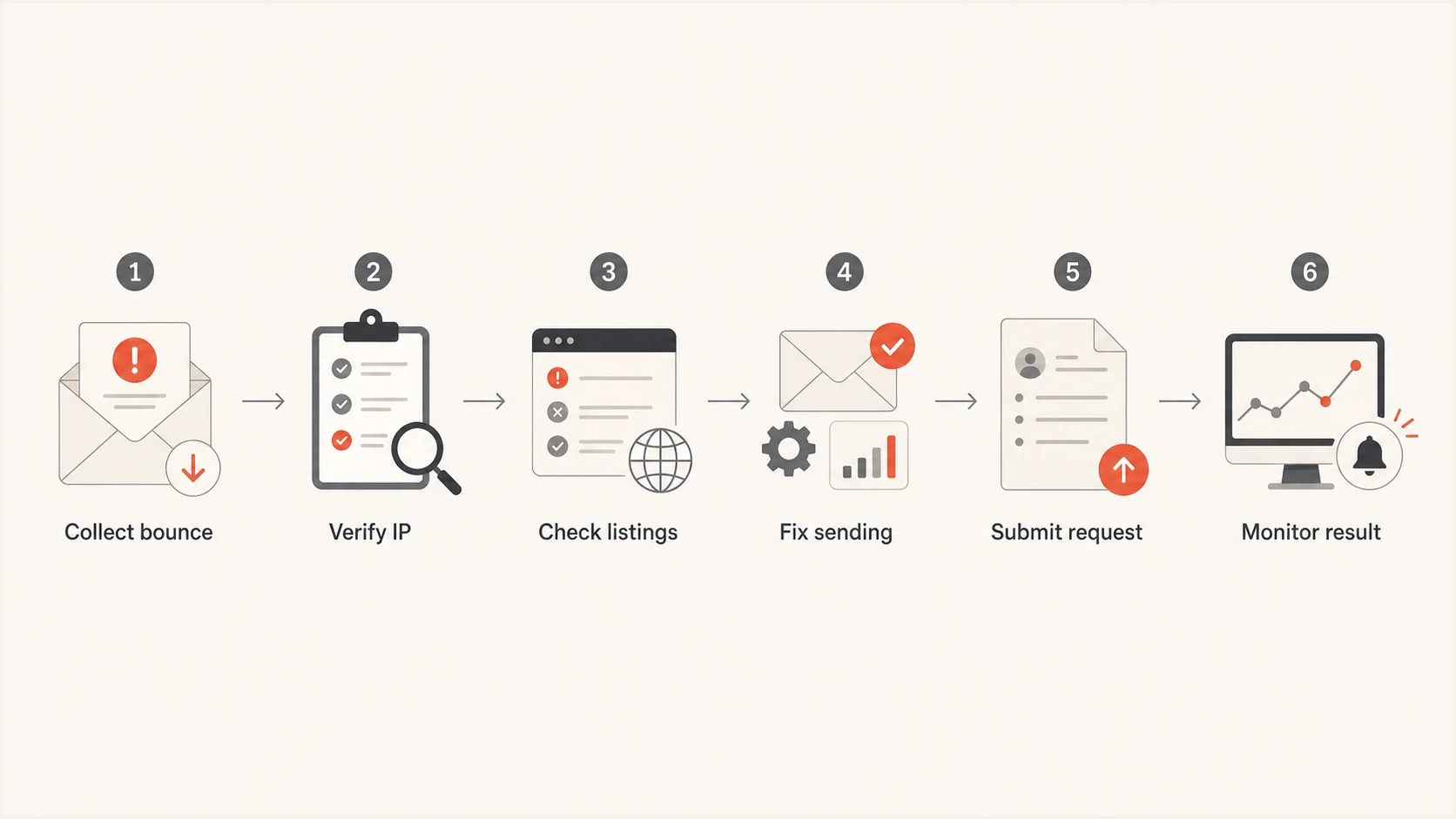
Flowchart for recovering a Microsoft IP delisting failure.
- Collect evidence: Save the full SMTP response, timestamps, recipient domain, sending IP, envelope sender, and message headers.
- Confirm scope: Test Microsoft consumer domains and Microsoft 365 business recipients separately because policy paths differ.
- Audit sources: Identify every source on the IP, including transactional systems, marketing mail, alerts, and legacy scripts.
- Fix failures: Resolve authentication gaps, remove stale recipients, slow the queue, and stop unexpected mail.
- Check reputation: Inspect public blocklists for a wider blacklist pattern, while treating the Microsoft NDR as the evidence for its own decision.
- Submit cleanly: Use the route named in the NDR, complete one request, then monitor fresh mail instead of opening duplicates.
Before opening another Microsoft request, check whether the IP or domain appears on broader blocklists. A Microsoft-only reject is handled one way. A wider blacklist pattern points to list hygiene, compromised sending, or provider pool damage. Public listings do not prove an IP is on Microsoft's internal list.
Blocklist checker
Check your domain or IP against 144 blocklists.





After the blocklist check, send a fresh controlled message and inspect the headers. The email tester is useful here because a real message exposes authentication and content issues that a DNS-only check misses.
A good resubmission has a tight story: the IP was blocked, the sender identified the cause, the risky mail was stopped, authentication now passes, and Microsoft should see stable traffic when it reviews the IP again.
What to prepare for Microsoft review
For the 5.7.606-649 self-service portal, enter the NDR recipient address and blocked IP, then complete the confirmation link. Keep the rejection, sender domain, corrective actions, and fresh test results ready for a manual support path when the NDR calls for one or the correct workflow stalls.
|
|
|
|---|---|---|
IP address | Targets review | 203.0.113.10 |
Bounce code | Shows filter path | 5.7.606 |
Sender domain | Proves identity | example.com |
Fix made | Shows control | Paused source |
Fresh test | Confirms state | Header pass |
Evidence to gather before a Microsoft IP delist request.
Notes for manual reviewtext
IP: 203.0.113.10
Sender domain: example.com
Issue: Microsoft 5.7.606 IP reputation rejection
Fix: paused stale campaign and removed invalid recipients
Authentication: SPF, DKIM, and DMARC pass on fresh test mail
Request: please review the current IP listing status
If consumer Hotmail and Outlook.com addresses are the main failure point, the Hotmail block guide is the closer match. If Microsoft 365 business domains reject broadly, the Microsoft delivery blocks workflow is more useful.
Stop resubmitting when the sender state is still changing. Duplicate requests with fresh bad traffic do not resolve the cause. Fix the stream first, then use the route in the NDR.
- Do not: Submit the same IP every few minutes during a temporary portal error.
- Do not: Rotate to a new IP before identifying the source that caused the listing.
- Do not: Assume passing SPF alone is enough when neither SPF nor DKIM aligns for DMARC.
- Do not: Ignore Microsoft tenant policy when only one company rejects the mail.
Where Suped fits
Suped's product helps keep a Microsoft delisting investigation tied to the real sender identity: domains, IPs, SPF, DKIM, DMARC, and reputation signals. Teams can use Suped to connect DMARC monitoring, hosted SPF, hosted DMARC, hosted MTA-STS, SPF flattening, alerts, issue detection, and blocklist monitoring in one operational workflow.
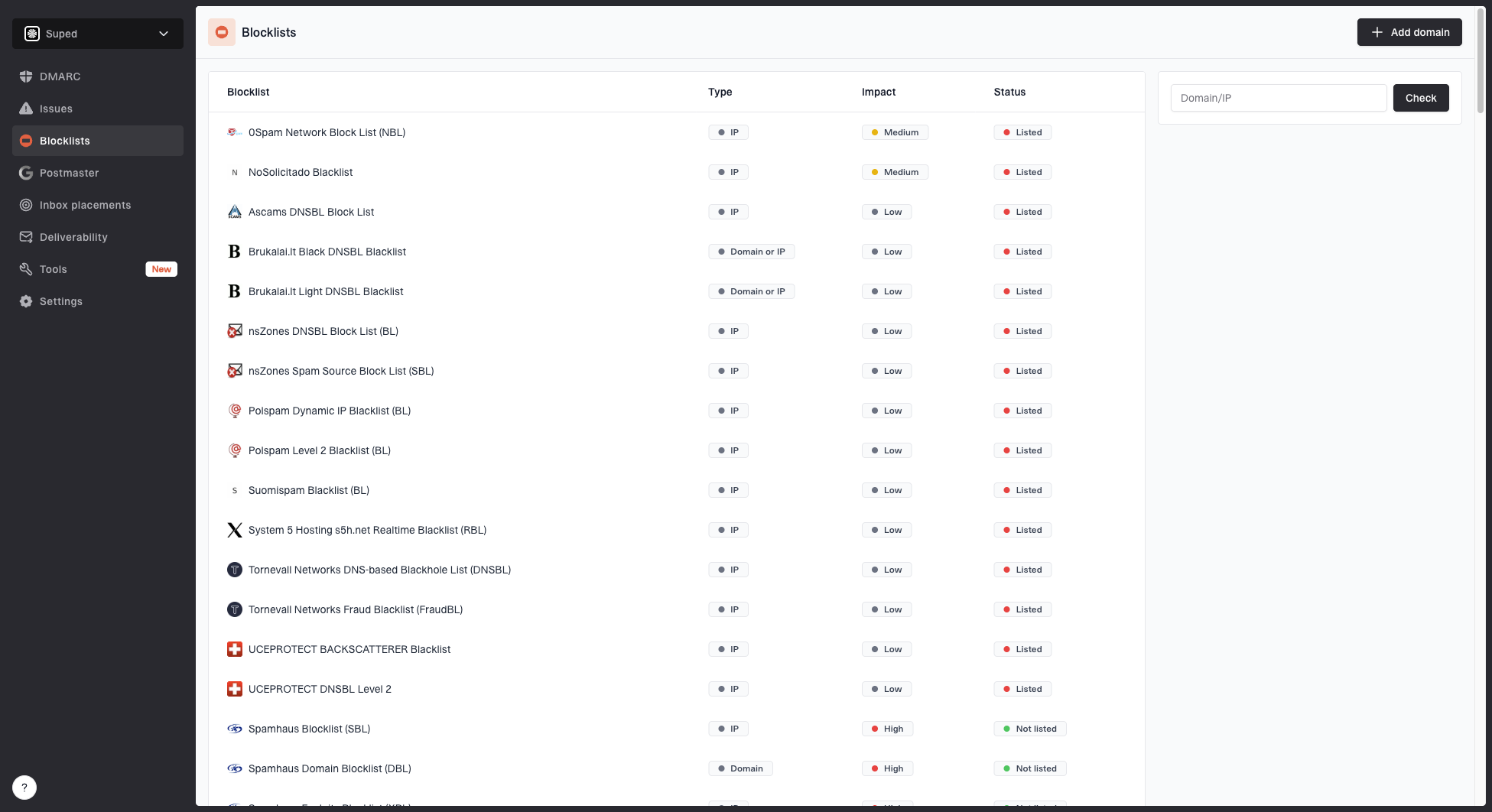
Blocklist monitoring page showing domain and IP checks across blocklists with importance and status
Suped can help the team check whether the sender is ready to stay clean after a delist request. The issues view gives fix steps, alerts identify new failures, and the multi-tenant dashboard helps agencies and MSPs manage the same workflow across many domains.
One-off delisting
- Scope: Focuses on one IP and one rejection path.
- Evidence: Depends on manually collected bounces, headers, and screenshots.
- Risk: Misses the domain or authentication issue that caused the listing.
Suped workflow
- Scope: Connects IP reputation with DMARC, SPF, DKIM, and sending sources.
- Evidence: Shows sending sources, authentication failures, policy state, and fix steps.
- Risk: Alerts identify new failures after the delist request.
For a first pass, use the domain health check to validate DMARC, SPF, and DKIM before another Microsoft submission.
?
What's your domain score?
Deep-scan SPF, DKIM & DMARC records for email deliverability and security issues.
If the health check finds authentication failures, fix those before asking for delisting again. Microsoft can remove an IP from one blocklist path and still distrust the next message if the domain identity is unclear.
Common mistakes that keep delisting stuck
Teams often focus on the Microsoft form because it is visible, then miss quieter issues in their sending program. Delay a repeat request until the sender state is stable instead of letting the next batch of mail undo a removal.
- Over-retrying: Repeated form submissions do not repair a portal outage or improve sender reputation.
- Wrong evidence: Screenshots without SMTP responses make it harder to identify the actual filter path.
- Partial fixes: Removing one campaign does not help when automated alerts or legacy systems keep sending bad mail.
- DNS drift: Old SPF includes, broken DKIM signatures, and missing reverse DNS need separate checks.
- Tenant confusion: One Microsoft 365 customer can block a sender locally even when Microsoft-wide reputation improves.
- Bad timing: Submitting before queues settle lets Microsoft review the IP during the worst traffic window.
A fresh end-to-end test helps separate DNS assumptions from real message behavior. Send a message after the fixes, inspect authentication results, and confirm the message path before reopening the delist request.
Views from the trenches
Best practices
Confirm whether the Microsoft form fails globally before changing working DNS records.
Keep full SMTP responses and timestamps so each delist request has precise evidence.
Pause risky streams until fresh authentication and recipient-quality checks pass.
Ask a second verified submitter to test the same IP when portal errors repeat again.
Common pitfalls
Treating a temporary portal error as proof that the IP is permanently rejected today.
Submitting the same IP repeatedly while poor traffic continues in the background.
Assuming a delist receipt means Microsoft inbox placement will recover immediately.
Checking only the IP and ignoring domain authentication, HELO, and reverse DNS data.
Expert tips
Separate consumer and business Microsoft failures because the policy paths differ.
Record the exact error text because similar Microsoft bounces need different fixes.
Use controlled test sends after every fix instead of judging only by old bounces.
Build a repeatable evidence packet for each IP before requesting manual review again.
Marketer view
Marketer from Email Geeks says Microsoft delist portal errors can affect more than one sender at once, so the first check is whether the failure is broader than one account.
2024-01-10 - Email Geeks
Marketer view
Marketer from Email Geeks says the same temporary error has appeared in past periods, then cleared, which makes patient retesting better than repeated submissions.
2024-01-10 - Email Geeks