What are the correct image dimensions and steps to add an animated GIF profile picture to my Google account?

Updated on 13 Aug 2026: We updated the sizing guidance, Google Account steps, Workspace restrictions, and animation expectations.
The practical answer: export a square animated GIF at 256 x 256 pixels, keep the visible action inside the center circle, and upload it through your Google Account profile picture settings. A 512 x 512 pixel source also works when the file remains compact.
Google's current Account help does not publish a minimum pixel dimension for user profile uploads. Treat 256 x 256 pixels as a practical working size, not an official Google requirement. The account avatar can affect how your identity looks in Gmail, but it does not prove domain ownership, replace BIMI, repair sender reputation, or fix email authentication.
The common failure is uploading the file through the wrong control. Gmail uses the Google Account picture, so the account-level photo is the source of truth. Animation varies by Google surface, and an old picture can remain visible for a few days or persist in another person's saved contacts.
Recommended image dimensions
The square crop matters more than one exact pixel count. Gmail and other Google products display profile photos as small circular avatars, so the file has to survive downscaling and cropping before the animation matters.
Recommended profile GIF spec
- Canvas: Use a square 256 x 256 pixel canvas as the practical starting point.
- Format: Export an animated GIF. Static JPG or PNG files will not contain animation.
- File size: Aim for less than 1 MB to reduce processing and loading delays. This is an optimization target, not a published Google Account limit.
- Crop: Keep the logo or face inside the middle 70 percent because the visible avatar is circular.
- First frame: Make frame one work as a complete static avatar because many views show only a still image.
A larger square source, such as 512 x 512 pixels, gives the crop tool more detail. Use the larger option only when the GIF remains compact and the subject stays centered.
|
|
|
|---|---|---|
Shape | Square | Wide crop |
Size | 256 or 512 px | Tiny artwork |
File | GIF | Video |
Motion | Short loop | Fast flash |
Fallback | Clear frame | Blank start |
Compact image preparation checklist for an animated Google Account avatar.
Profile GIF working spectext
canvas: 256 x 256 px recommended
shape: square
format: animated GIF
target file size: under 1 MB
safe area: centered subject, away from corners
first frame: readable static avatar
motion: short, subtle loop
upload path: Google Account profile picture
Do not treat a third-party size recommendation as a Google requirement. Google's current user-facing profile picture instructions explain how to upload and crop a photo but do not state a minimum dimension. A clean square file with a strong first frame matters more than chasing a larger pixel count.
Steps to add the animated GIF
Use the Google Account profile photo picker. The current desktop path runs through Personal info and Basic info, which keeps the change attached to the account used by Gmail and other Google products.
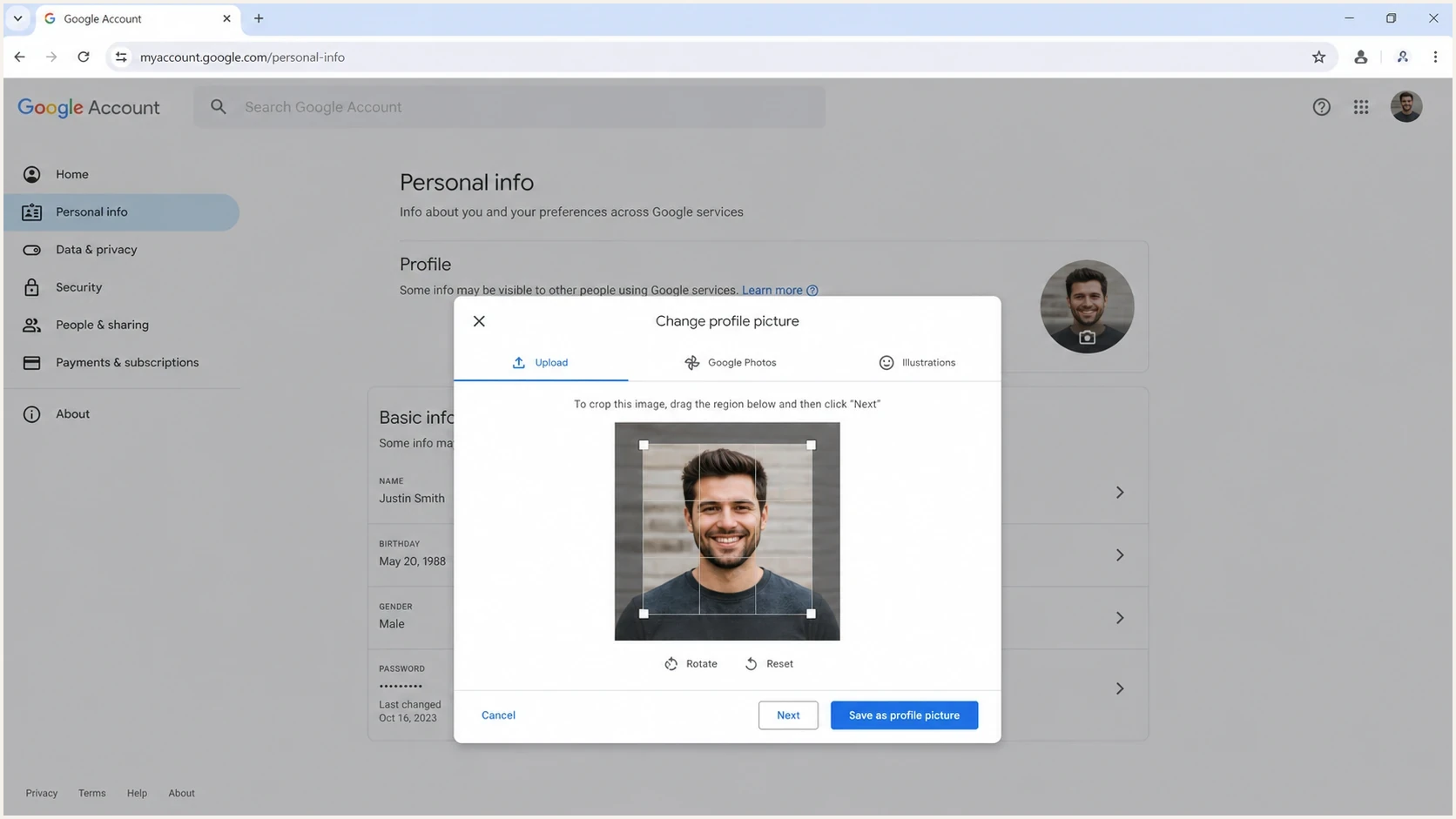
Google Account Personal info profile picture picker with upload and crop controls.
- Prepare: Export a square animated GIF at 256 x 256 pixels or larger, with a clear first frame.
- Open: Sign in to the Google Account that sends the email, then select Personal info.
- Choose: Under Basic info, select Profile picture, then choose the option to change or add it.
- Upload: Upload the GIF from your computer rather than using a Workspace administrator photo upload.
- Crop: Center the subject, leave room for the circular display, and click Next.
- Save: Select Save as profile picture, then allow up to a few days for the change to reach every Google product.
For a Workspace account, the user needs permission to edit the profile photo. An administrator can enable profile photo editing in Directory settings. The administrator upload route has different rules: it accepts JPEG or PNG files up to 5 MB and scales them automatically, so it is not the route for an animated GIF.
Workspace admin uploads do not accept GIFs
If the account is managed, ask the Workspace administrator to allow users to edit their profile photos. Then upload the GIF while signed in as the user through Google Account settings.
Where the GIF can animate
Google does not publish a current support matrix for animated account photos. Treat animation as surface-dependent behavior, not a guaranteed Gmail capability. A successful upload can still appear as a static first frame in several views.
Common behavior
- Gmail web: The inbox list often holds the first frame, while expanded profile views can animate.
- Google Chat: Some message and profile views animate the account picture, but test the receiving account.
- Google Meet: Animation can differ between participant lists, tiles, previews, and devices.
- Recipients: Gmail users are the main audience because other inboxes use their own sender-image systems.
Common limits
- Mobile apps: An app can show only the first frame or retain an older cached picture.
- Admin uploads: Workspace administrator photo uploads accept static JPEG or PNG files, not GIFs.
- Saved contacts: A recipient's saved contact image can continue to override the account picture.
- Fallback views: A static first frame has to look intentional because many users will see it.
If the first frame is blank, transparent, off-center, or mid-transition, recipients who see a static version get a poor avatar. Make frame one the complete brand mark or face, then start the motion after it.
Profile GIF readiness
Use these thresholds before uploading the avatar.
Good
Ready
Square GIF, centered subject, clear first frame, short loop.
Needs review
Check
Large file, fine detail, or motion close to the circular crop edge.
Poor
Redo
Rectangular crop, blank first frame, video upload, or fast flashing motion.
For more context on message-body image behavior, the related Suped pages on email image sizes and GIF deliverability cover images inside an email, which are separate from the Google Account avatar.
Google Account, Chrome, and YouTube pictures are different
Changing the Google Account picture does not give every Google-related profile the same animated avatar. Check which identity surface you are looking at before repeating the upload.
- Google Account: This picture can appear across Gmail, Chat, Meet, Drive, and other signed-in Google products.
- Chrome profile: The browser profile has its own name, photo, and color controls. Its small browser icon can remain static or update separately.
- YouTube channel: Google states that changing the Account picture does not change a YouTube channel's picture or name.
- Recipient contacts: A person who saved a different photo for you can keep seeing that saved image instead of the new account picture.
How to test the result
After the upload, send test messages to a Gmail recipient outside your organization and another account you control. Check Gmail web, an expanded profile card, and a mobile app. If the old avatar appears, allow up to a few days, clear the cache, and sign out and back in before recreating the GIF.
Then test the message itself. The Suped email tester sends a real email and lets you inspect the delivered result, including issues outside the avatar workflow.
Email tester
Send a real email to this address. Suped shows a results button when the test is ready.
?/43tests passed
A profile GIF does not compensate for failed authentication or blocklist (blacklist) problems. Suped's DMARC platform connects DMARC reporting with hosted SPF, hosted DMARC, hosted MTA-STS, blocklist monitoring, and specific remediation steps for teams that manage business sending domains.
For a broader technical check, use the Suped domain health checker to review SPF and DKIM alignment, DMARC policy, DNS configuration, and blacklist status. Suped's DMARC monitoring workflow helps identify sending sources, stage policy enforcement, and investigate authentication failures before changing production mail.
Troubleshooting failed uploads
If the upload fails, isolate the problem before recreating the asset. Common causes include the wrong upload path, Workspace permissions, an admin-only format restriction, GIF complexity, caching, and the expectation that every Google product will animate the file.
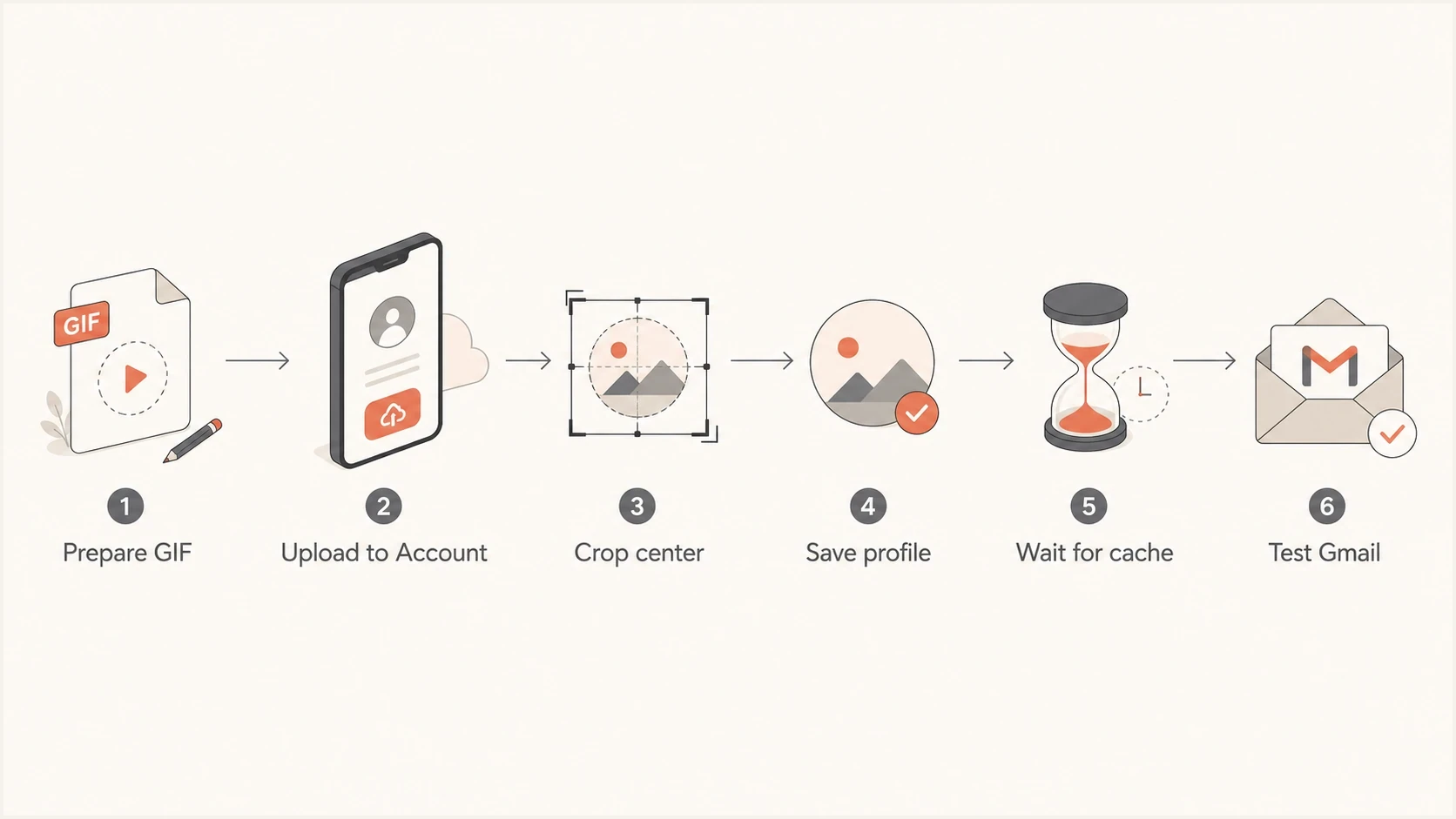
Google Account animated GIF upload flow with crop, save, cache, and Gmail tests.
- Wrong path: Re-upload through Google Account Personal info and the Profile picture control.
- Admin lock: Ask the Workspace administrator to allow users to edit profile photos.
- Admin format: Do not upload the GIF through the administrator photo tool, which accepts JPEG or PNG.
- Bad asset: Re-export a square GIF with fewer frames, a clear first frame, and a target size under 1 MB.
- Cache delay: Allow up to a few days, then check through a recipient account without a saved contact photo.
- Surface limit: Accept a static first frame where the current Google view does not animate account pictures.
Older walkthroughs explain the broad workflow but cannot guarantee current interface behavior. The Medium guide, Reddit thread, and LottieFiles guide describe the same basic pattern: prepare a GIF, upload it as the account photo, and test the views that matter to your recipients.
Views from the trenches
Best practices
Use a square 256 x 256 GIF with a readable first frame and centered art inside the crop.
Upload through Google Account profile photo settings, then allow a few days for caches.
Test the result in Gmail web and mobile because animation support changes by surface.
Common pitfalls
Uploading through an admin tool can reject the GIF before it reaches the user account.
Large files, tiny text, and edge-to-edge motion crop badly in circular profile slots.
Assuming a profile GIF replaces BIMI causes confusion about sender trust and logos.
Expert tips
Keep motion short and subtle so the avatar works when only the first frame loads.
Save a static PNG fallback for places where recipients see only a still account image.
Check email authentication separately so the avatar does not hide DMARC failures.
Marketer from Email Geeks says an animated GIF is the right file type, but the first frame should work as a static profile image.
2023-03-02 - Email Geeks
Marketer from Email Geeks says a square avatar with centered artwork is the practical target for a Gmail profile GIF.
2023-03-02 - Email Geeks
Final setup checklist
Use a square animated GIF at 256 x 256 pixels, design the first frame as a complete static avatar, keep the file compact, and upload it through the Google Account profile picture workflow.
Test the exact Gmail, Chat, Meet, and mobile views your recipients use. For business email, check authentication and blacklist status separately because the account avatar does not verify the sending domain.